
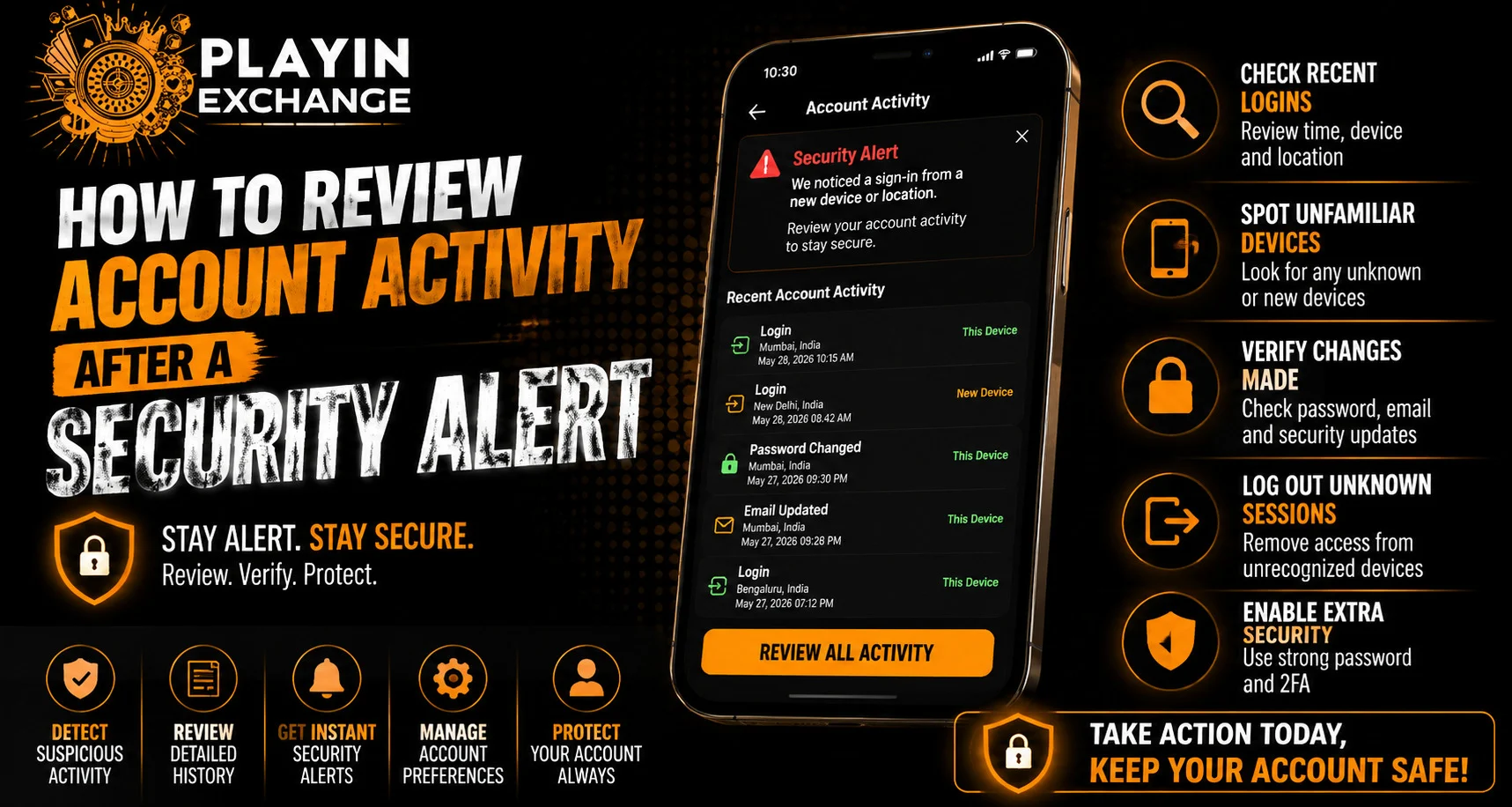
Introduction
Receiving a security alert can be concerning, especially when it mentions an unfamiliar login, device or account activity. A notification does not always mean an account has been compromised. It may be triggered by a new smartphone, browser, location or another normal change. For users following Playexch account security information, knowing how to review recent activity can make it easier to identify anything unusual.
The safest approach is to examine the alert carefully, verify recent account activity and take appropriate security steps when necessary.
Understand the Security Alert
Start by reading the alert carefully and identifying what caused it. Security notifications may provide useful details that can help you determine whether the activity was expected.
Check:
- Date and time of the activity
- Device type
- Approximate location
- Browser or application
- Type of account activity
- Recommended security action
Compare these details with your own recent activity. A login from a recently purchased smartphone, for example, may explain an unfamiliar-device notification.
Review Recent Login Activity
Many online services provide an account-security section where users can review recent sessions and connected devices.
Look for unfamiliar:
- Devices
- Locations
- Login times
- Browsers
- Active sessions
If every session can be explained, the alert may have been triggered by normal account activity. An unfamiliar session should be investigated before continuing to use the account.
Check for Unexpected Account Changes
Unauthorized access can sometimes involve changes to important account settings. After reviewing login activity, check whether any personal or security information has changed without your knowledge.
Pay attention to:
- Password changes
- Recovery email changes
- Phone-number changes
- Security-setting updates
- Profile changes
- Payment-method changes
An unexpected change can be a stronger warning sign than an unfamiliar login alone.
Change Your Password When Necessary
If you identify an activity that you cannot explain, changing the account password is an important precaution.
Choose a password that is:
- Unique to the account
- Difficult to guess
- Not used on other websites
- Free from obvious personal information
Avoid reusing a password that may already have been exposed elsewhere. A unique password can reduce the impact of a security problem affecting another service.
Sign Out of Unknown Sessions
Some platforms provide tools for managing active sessions and connected devices. If you find a device that you do not recognise, sign it out using the platform’s official security controls.
After removing the unfamiliar session, check the list again to make sure there are no additional unknown devices.
This is particularly useful if you have recently lost a smartphone, used a shared computer or believe someone else may have accessed the account.
Review Account Transactions
If the account is connected to financial activity, review recent transactions carefully after receiving a security alert.
Look for:
- Unknown deposits
- Unrecognized withdrawals
- Unexpected payment changes
- Transactions you do not remember making
Verify suspicious financial activity through your bank or payment provider rather than relying on screenshots or messages.
If an unauthorized transaction appears, contact the relevant financial institution through its official support channel as soon as possible.
Be Careful With Security Alert Messages
Security alerts can also be used in phishing attempts. A fraudulent message may imitate a legitimate notification and direct users to a fake login page.
Before clicking a link, check:
- The sender’s details
- The website address
- The wording of the message
- Whether you actually requested the action
- Whether the notification also appears inside the official account
When you are uncertain, open the official website manually rather than using a link contained in the message.
Enable Available Security Features
After reviewing the account, check whether additional protection options are available.
Depending on the service, these may include:
- Two-factor authentication
- Login notifications
- Device management
- Session controls
- Recovery options
- Security alerts
Enabling appropriate security features can make future account activity easier to monitor.
Check Your Device and Browser
Security problems are not always caused by the account itself. The device or browser used to access the account can also create risks.
Consider:
- Updating the smartphone or computer
- Updating the browser
- Removing unknown applications
- Reviewing browser permissions
- Using a strong device lock
- Avoiding suspicious downloads
Keeping software updated can improve both security and compatibility.
Safe Account Access
Users who need to access their account through Playexchange login should first verify that they are using the correct website or authorised access route. After receiving a security alert, avoid following unfamiliar login links from email, social media or messaging applications.
Passwords, OTPs and recovery codes should remain private. They should never be shared with anyone claiming to be a support representative or security specialist.
When Should You Contact Support?
Verified support may be necessary when suspicious activity cannot be resolved independently.
Consider contacting support when:
- You cannot explain a login.
- Your password changed unexpectedly.
- Recovery information was modified.
- An unfamiliar transaction appears.
- You cannot access your account.
- Security alerts continue without an obvious reason.
Keep relevant alert details and transaction references available, but do not provide passwords, OTPs or other confidential credentials.
A Simple Security Review Checklist
After receiving an alert, work through the following sequence:
- Read the notification carefully.
- Check recent login activity.
- Review account and recovery settings.
- Check recent transactions.
- Remove unfamiliar sessions.
- Change the password if necessary.
- Enable available security protections.
- Contact verified support if the issue remains unclear.
This method helps keep the review organised instead of reacting immediately to the notification.
Conclusion
A security alert should be treated as a reason to review account activity carefully rather than as automatic proof that an account has been compromised. Checking recent logins, devices, account settings and transactions can help identify whether the activity was legitimate or requires further action.
Users should also be cautious with links included in security messages and should never share passwords, OTPs or recovery codes. Using verified access channels, maintaining updated devices and reviewing account activity regularly can provide an additional layer of protection.
FAQs
1. What should I check first after receiving a security alert?
Start by checking the alert’s date, time, device, location and activity details. Compare them with your own recent account activity.
2. Should I change my password after every security alert?
Not necessarily. If you recognise the activity, a password change may not be required. If you find unfamiliar access or unexplained account changes, changing the password is recommended.
3. How can I identify an unauthorized login?
Look for unfamiliar devices, locations, browsers or login times. Unexpected changes to passwords or recovery information can also indicate suspicious activity.
4. Should I click a link in a security-alert email?
Be cautious. Verify the sender and website address first. When there is any doubt, open the official website manually instead of using the message link.
5. What should I do if I find an unauthorized transaction?
Check the transaction through your bank or payment provider and report it promptly using the provider’s official fraud or dispute process.
6. When should I contact account support?
Contact verified support if you cannot explain an account activity, lose access, notice unexpected account changes or discover an unauthorized transaction.


