
Introduction
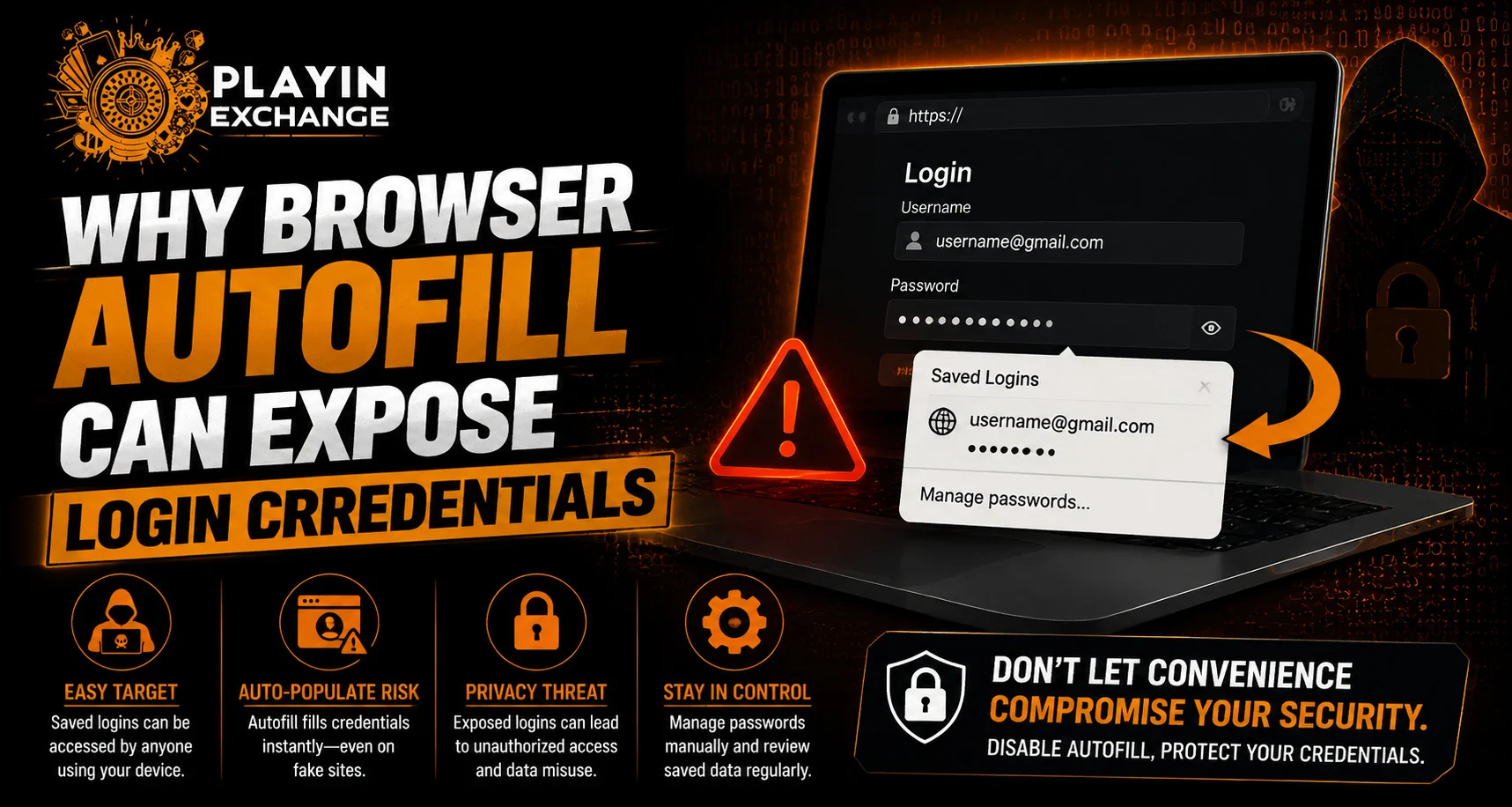
Browser autofill can make online sign-ins faster by automatically entering saved usernames, email addresses and passwords. While this feature is convenient, it can create security concerns when credentials are stored on a shared, unsecured or compromised device. For users who access Playexch from smartphones or computers, understanding how autofill works can help them make better choices about storing sensitive login information.
Autofill itself is not automatically unsafe, but its security depends on the browser, device protection and how saved credentials are managed.
What Is Browser Autofill?
Browser autofill is a feature that remembers information entered on websites and uses it again when similar fields appear.
Depending on the browser, autofill may store:
- Usernames
- Email addresses
- Passwords
- Names
- Addresses
- Payment information
Password managers built into modern browsers can also generate and save unique passwords, making account management easier.
Why Can Autofill Create Security Risks?
Autofill can expose information when another person gains access to an unlocked device or browser profile.
For example, if a smartphone or computer is shared with someone else, stored credentials may become accessible through the browser’s password-management features.
Potential risks include:
- Unauthorized access to saved passwords
- Exposure of personal information
- Automatic filling on a misleading website
- Access through an unlocked device
- Credential exposure after account or browser compromise
The level of risk depends on how well the device and browser are protected.
Shared Devices Need Extra Care
Saving passwords on a personal, securely locked device is different from saving them on a shared computer.
On shared devices, another user may be able to access saved information if the browser profile is not properly protected.
Users should avoid saving sensitive credentials on:
- Public computers
- Office devices used by multiple people
- Family-shared devices without separate profiles
- Borrowed smartphones
- Untrusted computers
Using separate user accounts or private browsing where appropriate can reduce accidental exposure.
Device Security Protects Autofill Data
A strong device lock is an important layer of protection for saved credentials.
Useful measures include:
- Strong device passwords
- Screen-lock timeouts
- Fingerprint authentication
- Face recognition
- Automatic software updates
- Separate browser profiles
If someone can freely access an unlocked device, browser security features may provide less protection than expected.
Autofill on Fake Websites
One important concern is where stored information gets entered.
Phishing websites can imitate legitimate login pages and attempt to collect credentials. Users should always verify the website address before allowing sensitive information to be entered.
Before signing in, check:
- Website domain
- Spelling of the address
- Browser security indicators
- Whether the page was opened through a trusted source
Do not assume a familiar logo or design means a website is genuine.
Be Careful With Password Saving
Modern browsers often ask whether users want to save a password after signing in. This can be useful on personal devices, but users should consider the environment before accepting.
On a private device, saved passwords can make secure account management easier. On a shared or poorly protected device, storing credentials may increase the risk of unauthorized access.
The choice should depend on device security and who can access the browser profile.
Review Saved Passwords Regularly
It is good practice to review stored credentials from time to time.
Users can check for:
- Old passwords
- Duplicate passwords
- Accounts they no longer use
- Unfamiliar saved entries
- Passwords that need updating
Removing outdated credentials can reduce the amount of sensitive information stored in the browser.
Use Unique Passwords
Autofill becomes especially risky when the same password is reused across several accounts. If one credential is exposed, attackers may try it on other websites.
Using a different password for every important account can limit this risk.
A reputable password manager can help users generate and store unique passwords without requiring them to remember each one manually.
Enable Additional Account Protection
Where available, users should enable stronger login protection in addition to a password.
Options may include:
- Two-factor authentication
- Passkeys
- Security keys
- Login notifications
- Device verification
These measures can make it harder for someone to access an account even if a saved password is exposed.
Browser and Account Security
Users who need Playexchange login access should verify that the website address is correct before entering credentials or relying on saved autofill information. A browser can only fill saved data; it cannot determine whether the website is trustworthy.
Users should also avoid saving credentials after signing in on an unfamiliar or shared device.
What to Do If Autofill Enters a Password Unexpectedly
If a browser unexpectedly fills a saved password on a website you do not recognise, stop before submitting the form.
Check:
- The website address.
- The browser tab and domain.
- Whether the page is legitimate.
- Which account information was selected.
- Whether the password was actually submitted.
If sensitive information was submitted to a suspicious website, change the affected password through the legitimate service and review recent account activity.
When Should Autofill Be Disabled?
Disabling password autofill may make sense on devices that are frequently shared or not fully controlled by one person.
It can also be useful for users who prefer to manage credentials through a dedicated password manager instead of the browser.
However, completely disabling autofill is not the only security solution. Strong device protection, unique passwords and additional authentication can also significantly improve account security.
Conclusion
Browser autofill is a useful convenience feature, but stored login credentials need to be protected. Risks can increase when passwords are saved on shared devices, entered on misleading websites or stored in a browser profile that is not properly secured.
Users can reduce these risks by protecting their devices, checking website addresses, reviewing saved credentials and using unique passwords. Additional security features such as two-factor authentication or passkeys can provide further protection.
The key is to balance convenience with careful account management rather than assuming that autofill is either completely safe or completely dangerous.
FAQs
1. Can browser autofill expose saved passwords?
Yes. If someone gains access to an unlocked or poorly protected browser profile, saved credentials may become accessible.
2. Is it safe to use autofill on a personal device?
It can be reasonably convenient on a well-protected personal device, particularly when the operating system and browser are kept updated and the device uses a strong lock.
3. Should I save passwords on a shared computer?
It is generally safer to avoid saving sensitive passwords on shared or public computers where other people may access the browser.
4. Can phishing websites steal autofilled passwords?
A fake website can attempt to trick users into submitting credentials. Always verify the website address before signing in or submitting an autofilled form.
5. How can I make saved passwords more secure?
Use a strong device lock, unique passwords, updated software and additional account protection such as two-factor authentication or passkeys.
6. What should I do if I entered a password on a suspicious website?
Change the affected password through the legitimate website, review recent account activity and update the password anywhere else it was reused.


