
Introduction
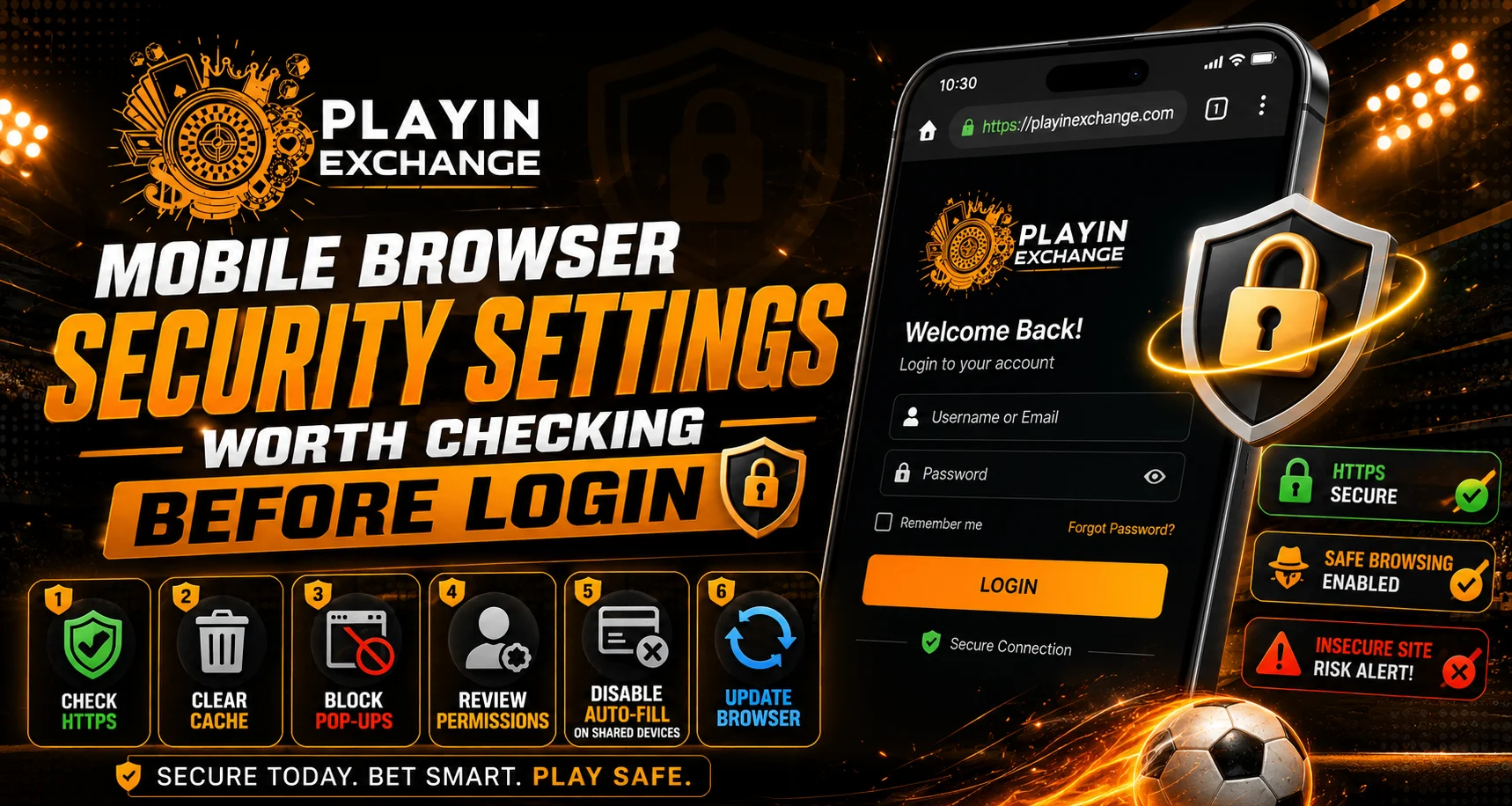
Mobile browsers make it easy to access websites while travelling, but convenience should always be balanced with security. Before opening Playexch or any other account-based website, users should take a few minutes to review their browser settings. Simple checks involving passwords, permissions, privacy controls and software updates can reduce common security risks.
A secure browser setup does not guarantee complete protection, but it can make unauthorized access and accidental data exposure less likely. These precautions are particularly useful when logging in from a smartphone or shared network.
Keep Your Mobile Browser Updated
Browser developers regularly release updates that address security vulnerabilities and improve privacy protections. Using an outdated version can leave a device exposed to problems that have already been addressed in newer releases.
Before logging in, check whether your browser has a pending update.
Users should:
- Install browser updates from official app stores.
- Keep automatic updates enabled where practical.
- Restart the browser after major updates.
- Avoid unofficial browser APK files.
Keeping the operating system updated is also important because browser security depends partly on the underlying mobile platform.
Use Strong Password Protection
A browser may offer to save login credentials, but users should understand where those credentials are stored and how they are protected.
A strong password should:
- Be unique to the account.
- Avoid easily guessed personal information.
- Contain a combination of letters, numbers and symbols.
- Not be shared with other people.
- Be changed if there is reason to suspect exposure.
A password manager provided by a reputable browser or security provider can also help users create and manage unique passwords.
Review Saved Passwords
Before using Playexchange login on a mobile browser, check whether the browser is storing an old or duplicate password. This is especially important if the device has previously been used by another person.
Users should review:
- Saved passwords
- Autofill information
- Previously stored payment details
- Unknown saved accounts
Remove credentials that are no longer needed, particularly on devices that may be accessed by other people.
Check Website Permissions
Modern browsers allow websites to request access to features such as location, notifications, cameras and microphones. Not every website needs every permission.
Review permissions and ask whether each one is actually necessary.
Useful precautions include:
- Block unnecessary notifications.
- Avoid granting location access without a clear reason.
- Deny camera or microphone permissions unless required.
- Remove permissions from websites you no longer use.
Limiting unnecessary permissions reduces the amount of information a website can access through the browser.
Check the Website Address Carefully
Phishing websites can imitate legitimate services by using similar names, layouts or domains. Checking the address before entering a password is therefore one of the simplest security habits.
Look for:
- The correct domain name
- HTTPS encryption
- No unusual spelling
- No unexpected redirects
- No suspicious pop-ups requesting credentials
Do not enter passwords after clicking an unfamiliar message or advertisement unless the destination has been independently verified.
Be Careful With Public Wi-Fi
Public Wi-Fi can be convenient, but users should be cautious when accessing sensitive accounts through unknown networks.
If possible:
- Use a trusted mobile connection.
- Avoid logging in through unfamiliar Wi-Fi networks.
- Turn off automatic connection to open networks.
- Forget networks that are no longer needed.
A secure website connection is important, but users should still avoid unnecessary risks when handling account information.
Review Privacy and Tracking Controls
Mobile browsers include privacy settings that can control cookies, tracking and browsing data. The exact options vary between browsers, but reviewing them regularly is worthwhile.
Users can consider:
- Blocking intrusive pop-ups.
- Limiting third-party tracking.
- Clearing browsing data when appropriate.
- Reviewing cookie settings.
- Disabling unnecessary notifications.
Privacy settings should be balanced with website functionality because strict controls can sometimes prevent legitimate features from working correctly.
Avoid Login Details on Shared Devices
A personal smartphone is generally easier to secure than a shared device. If another person regularly uses the same phone, avoid leaving passwords or account information exposed.
After using an account on a shared device:
- Sign out completely.
- Do not save the password.
- Clear sensitive autofill entries.
- Check the browser’s saved-account section.
These steps can help prevent another person from accessing the account.
Think Before Installing Browser Extensions or APKs
Users should be particularly careful with unofficial browser extensions, modified applications and unknown APK files. Software from untrusted sources can potentially contain unwanted or malicious components.
Only install applications and browser tools from reputable sources, and review requested permissions before installation.
Conclusion
Mobile browser security does not require complicated technical knowledge. Keeping the browser updated, protecting passwords, checking website addresses, reviewing permissions and avoiding unsafe networks can significantly improve everyday account security.
Before accessing Playexch or another account-based service, users should take a moment to verify the website and review their device’s security settings. Good browsing habits are especially important when handling login credentials or other sensitive information.
FAQs
Why should I check my browser before logging in?
A quick security check can help identify outdated software, saved credentials, excessive permissions or unsafe browser settings before sensitive information is entered.
Should I save my login password in a mobile browser?
It depends on your security preferences and device. If you use password saving, make sure your phone has a strong screen lock and the browser’s credential protection is enabled.
How can I identify a suspicious login website?
Check the domain carefully, look for unusual spelling or redirects, and avoid entering credentials through links received from unknown sources.
Is public Wi-Fi safe for account logins?
Public Wi-Fi can introduce additional risks. When possible, use a trusted mobile connection or a secure network for sensitive account activity.
Should website permissions be reviewed regularly?
Yes. Removing unnecessary location, notification, camera and microphone permissions can reduce unwanted access to device features.
What should I do if I suspect my password has been exposed?
Change the password immediately through the official website, avoid reusing it elsewhere and review the account for unusual activity.
What is the safest way to access an account on mobile?
Keep the phone and browser updated, use a strong unique password, enable available security features, verify the website address and avoid sharing login credentials.


