
Introduction
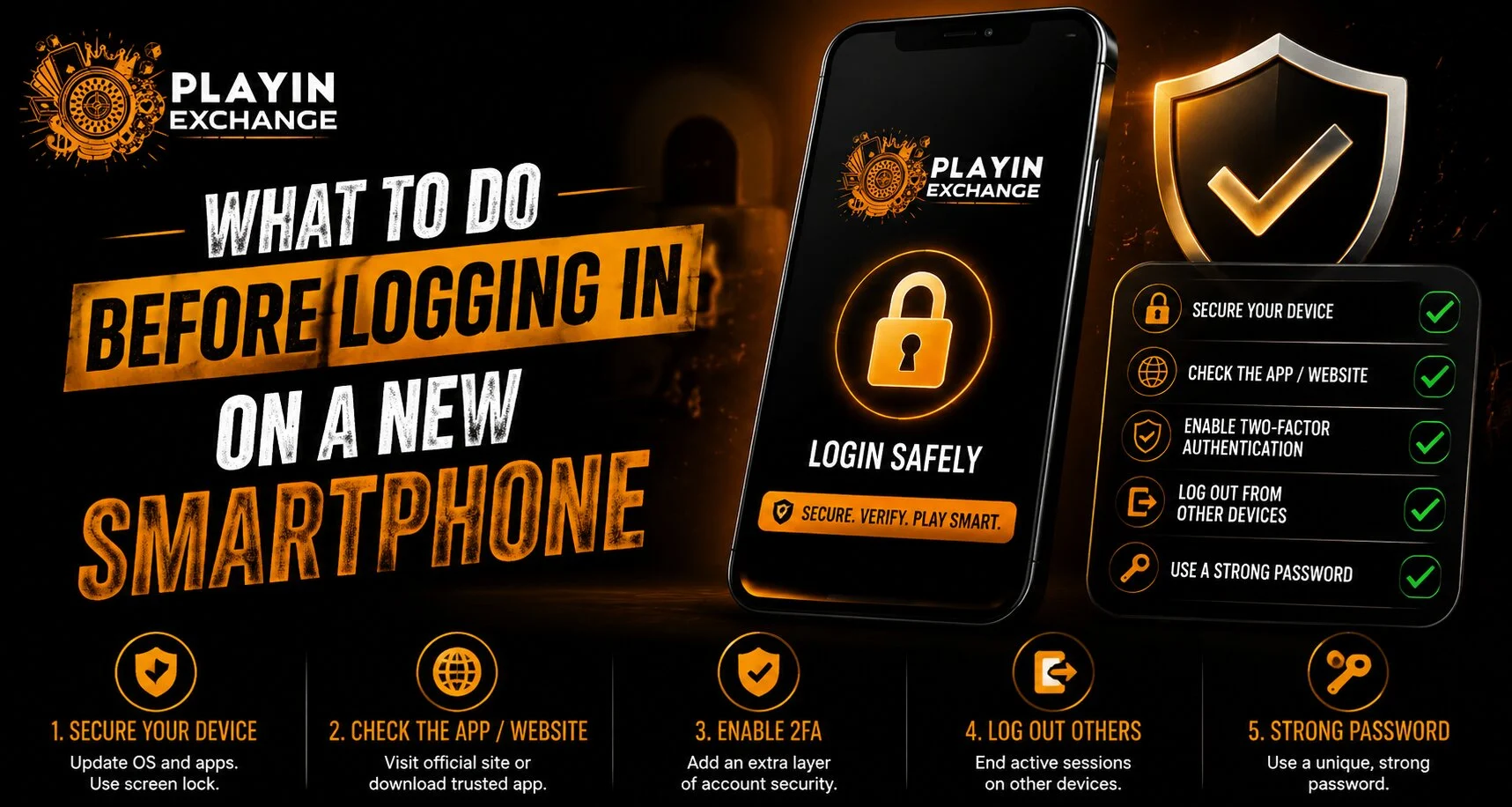
Getting a new smartphone can make account access more convenient, but it is worth checking a few security settings before entering login details. A new device may have different browser permissions, saved-password options, app versions and network settings. For users accessing Playexch from a new smartphone, taking a few minutes to prepare the device can reduce avoidable security and login problems.
A secure login starts with the device itself, not just the account password.
Update the Smartphone First
Before signing in to important accounts, check whether the phone has pending operating-system updates. Updates can include security improvements, bug fixes and compatibility changes.
Make sure to:
- Install available system updates.
- Restart the phone if required.
- Update important applications.
- Keep the mobile browser updated.
- Remove applications that you do not recognize.
Using an updated device provides a better foundation for secure account access.
Use a Trusted Internet Connection
Your internet connection can also affect the security of your login session.
When accessing an account for the first time, consider using:
- Your mobile data connection
- A trusted home Wi-Fi network
- A password-protected private network
Avoid entering sensitive account information while connected to unknown public Wi-Fi networks, particularly if the network appears suspicious or does not require authentication.
Check the Browser Address
Before entering a username, password or other account information, verify that you are using the correct website address.
This is particularly important when searching for a website through search engines, advertisements or messages. Fake websites can be designed to look similar to legitimate services.
Before signing in, check:
- The website address
- The spelling of the domain
- The browser’s security indicator
- Whether the page looks legitimate
- Whether you reached the site through a trusted source
Do not enter credentials if something appears unusual.
Avoid Saving Passwords on Shared Devices
Modern smartphones can offer convenient password-saving features. However, users should understand where credentials are being stored and who can access the device.
If the phone is shared with another person, avoid saving sensitive passwords where another user could potentially access them.
For personal devices, use the smartphone’s built-in security features, such as:
- Screen lock
- Fingerprint authentication
- Face recognition
- Strong device password or PIN
These features can provide an additional layer of protection if the phone is lost or accessed by someone else.
Enable Device Security
A new smartphone should have basic security protections enabled before important accounts are accessed.
Check that:
- A secure screen lock is active.
- Biometric authentication is configured if preferred.
- Automatic updates are enabled where available.
- Find-device features are activated.
- Unnecessary permissions are restricted.
These settings can help protect both the device and the information stored on it.
Be Careful With Login Links
Users sometimes receive account-related links through SMS, email or messaging applications. A message may claim that immediate login or verification is required.
Do not automatically follow such links.
Instead, open the trusted website or official application directly and sign in from there. This makes it easier to avoid phishing pages designed to collect usernames and passwords.
Check Browser Permissions
Before logging in through a mobile browser, review its permissions and privacy settings.
Pay attention to:
- Notifications
- Pop-ups
- Location access
- Camera and microphone permissions
- Stored site data
- Automatic downloads
You do not necessarily need to grant every permission requested by a website. Only allow access when it is genuinely required and understood.
Do Not Share Login Credentials
A new-device login may sometimes require additional verification. However, users should never share confidential credentials with someone claiming to provide technical assistance.
Never disclose:
- Passwords
- One-time passwords
- UPI PINs
- Banking credentials
- Recovery codes
If additional verification is required, complete it directly through the official account or service.
Check Your Account After Login
Once you successfully log in on the new smartphone, review the account settings and security information.
Look for:
- Recent login activity
- Registered devices
- Recovery information
- Security notifications
- Password settings
- Two-factor authentication options
If an unfamiliar device or login appears, investigate it before continuing to use the account.
What If Login Does Not Work?
A new smartphone can sometimes cause login problems because of browser settings, outdated software or incorrect credentials.
Try these basic steps:
- Confirm the website address.
- Check your internet connection.
- Update the browser.
- Clear outdated website data if necessary.
- Re-enter the correct credentials.
- Use the official password-recovery process if you have forgotten the password.
- Contact verified support if the issue continues.
Avoid downloading unofficial applications or using unknown login pages to bypass a problem.
Using Playexchange on a New Device
When accessing Playexchange from a new smartphone, users should first verify that they are using the correct website or authorized application source. Keeping the device updated and protecting login credentials can reduce common security risks.
For Playexchange login issues, use the platform’s verified account-recovery or support options instead of relying on links or contacts received from unknown sources.
A Quick New-Phone Login Checklist
Before signing in, check the following:
- Smartphone software is updated.
- Browser or official application is updated.
- Screen lock is enabled.
- Internet connection is trusted.
- Website address is correct.
- Login page appears legitimate.
- Unnecessary permissions are disabled.
- Passwords and OTPs are kept private.
- Recent account activity can be reviewed.
Conclusion
Logging in on a new smartphone does not have to be complicated, but a few basic checks can make the process safer. Updating the device, using a trusted connection, verifying the website address and protecting login credentials are important first steps.
Users should also review account activity after signing in and avoid unofficial links or applications. A careful approach before the first login can help prevent phishing attempts, unauthorized access and unnecessary account-recovery problems.
FAQs
1. Should I update my smartphone before logging in?
Yes. Installing available operating-system and application updates can improve security and compatibility.
2. Is public Wi-Fi safe for logging into accounts?
It is better to use a trusted private network or mobile data when entering sensitive account information, especially when the public network is unfamiliar.
3. Should I save my password on a new smartphone?
If it is your personal, properly secured device, a reputable password manager or built-in password manager can be convenient. Avoid saving sensitive credentials on shared or unsecured devices.
4. What should I check before entering my password?
Verify the website address, connection, browser security indicators and legitimacy of the login page before entering credentials.
5. What should I do if I see an unfamiliar login?
Review your account security settings and follow the service’s official process for securing the account, including changing the password if necessary.
6. Should I use login links received through messages?
Be cautious. Instead of clicking an unexpected link, open the official website or application directly and access your account from there.


